
How to Calculate Margin, Gross Margin & Marginal Revenue with Formulas and Free Calculator
Learn how to calculate margin, gross margin, and marginal revenue with simple formulas and real examples. Use our free calculator to analyze pricing, profitability, and business performance instantly.
- How to Calculate Margin, Gross Margin & Marginal Revenue with Formulas and Free Calculator
- Gross Margin & Marginal Revenue Calculator
- What Is Margin?
- How to Calculate Margin — Step-by-Step
- What Is Gross Margin?
- How to Calculate Gross Margin — Step-by-Step Guide
- What Is Marginal Revenue?
- How to Calculate Marginal Revenue (With Two Scenarios)
- Break Even Point Explained
- Markup vs Margin
- Break-Even Selling Price (BESP)
- Common Mistakes & Troubleshooting
- How to Use Our Gross Margin & Marginal Revenue Calculator
- Real World Examples
- Who Should Use This Calculator?
- Related Calculators
- Summary & Key Takeaways
- Frequently Asked Questions
- Disclaimer
Want to know how profitable each product actually is? Learning how to calculate margin, gross margin, and marginal revenue is the first step toward a healthier business.
These metrics aren’t just for accountants—they are the pulse of your pricing strategy, product roadmap, and survival. Whether you are setting prices for a new startup, presenting to investors, or deciding which SKUs to cut, understanding the math behind your profit is non negotiable.
Instead of guessing, use the formulas and examples below to master your unit economics. Even better, you can skip the manual math and use our free calculator (embedded below) to test different pricing scenarios instantly.
Gross Margin & Marginal Revenue Calculator
Margin Calculator
Provided by howtocalc.com
Assumes Marginal Revenue equals Selling Price.
Enter total revenue for current Q and Q+1.
Gross Margin Percentage
Total Net Profit
What Is Margin?
At its core, margin is the difference between what you sell a product for and what it cost you to make or acquire it. Specifically, we are often talking about “unit margin”—the profit contribution of a single item before fixed costs like rent or salaries are paid.
Why is this the most critical number in retail? Because if your unit margin is negative, selling more product just means losing money faster.
According to Investopedia, gross margin represents the portion of each dollar of revenue that the company retains as gross profit. In our context of unit economics, knowing how to calculate margin tells you exactly how much money remains from each sale to cover your overheads and eventually line your pockets.
Margin vs. Profit — What’s the Difference?
While people often use the terms interchangeably, they are distinct.
- Margin is usually expressed as a percentage or a per-unit dollar amount relative to the price.
- Profit is the total financial gain after all expenses (variable and fixed) are subtracted.
You can have a high margin (e.g., 50% on a luxury watch) but low total profit if you only sell one watch a year and have high rent. Conversely, you can have a thin margin (e.g., 2% on groceries) but massive profit due to high volume.
Why Margin Matters in Pricing
Knowing how to calculate margin empowers you to make smarter decisions on:
- Pricing: Can you afford to lower prices to beat a competitor?
- Promotions: Will a 20% discount wipe out your entire profit?
- Supplier Negotiations: Do you need to lower your Cost Price (CP) to stay healthy?
- Product Mix: Which items are carrying your business, and which are dead weight?
Margin Example (Simple Example With Numbers)
Let’s look at a simple scenario. Imagine you sell a custom t-shirt.
- Cost Price (CP): $15.00 (This covers the blank shirt and printing).
- Selling Price (SP): $35.00.
The Math:
- Unit Margin: $35.00 – $15.00 = $20.00.
Analysis: This $20.00 is not pure profit yet. It is the contribution margin that goes toward paying your fixed costs (like your warehouse rent etc).
Margin Formula (Easy + Mathematical Notation)
Here is the standard formula for calculating margin:
Unit Margin = Selling Price (SP) – Cost Price (CP)
Margin % = ((SP – CP) / SP) × 100
(Note: Ensure you do not confuse the denominator. Dividing by Selling Price gives you Margin. Dividing by Cost Price gives you Markup.)
How to Calculate Margin — Step-by-Step
If you want to know how to calculate margin manually, follow this four-step process. Our calculator above does this automatically, but understanding the steps helps you catch errors in your data.
Step 1 — Find Your Cost Price (CP)
First, determine the direct cost to acquire or produce a single unit. This is often called COGS (Cost of Goods Sold). Include materials, direct labor, and packaging. If you are dropshipping, this includes the product cost plus the shipping fee to the customer. Do not include fixed costs like rent or marketing here; those come later.
Step 2 — Find Your Selling Price (SP)
This is the price the customer pays. If you offer free shipping, use the total amount collected. Be careful to use the net price if you run frequent discounts. For example, if your list price is $50 but you always sell at 10% off, your effective SP is $45.
Step 3 — Calculate Margin Amount
Subtract the Cost Price from the Selling Price.
Using our example:
$35.00 (SP) – $15.00 (CP) = $20.00
This is your Unit Margin.
Step 4 — Convert Into Margin %
To see your efficiency, convert the dollar amount into a percentage.
Calculation: ($20.00 / $35.00) × 100 = 57.14%
Interpretation: You keep 57.14% of every dollar earned as gross margin.
Use the Calculator to Auto-Calculate Margin
To do this in the tool above:
- Select your Currency (e.g., USD).
- Select your Industry Standard (e.g., General Retail).
- Enter 15.00 in the “Cost Price (CP)” field.
- Enter 35.00 in the “Selling Price (SP)” field.
- Click Calculate.
- Look at the “Gross Margin Percentage” box. You will see 57.14% and a badge labeled EXCELLENT.
What Is Gross Margin?
While “margin” often refers to a single unit, Gross Margin usually looks at the bigger picture—total revenue minus total Cost of Goods Sold (COGS). It is a key health indicator on your income statement. It answers the question: “After making my product, how much money is left over to run the company?”
Gross Margin Formula
Gross Margin % = ((Total Revenue – Total COGS) / Total Revenue) × 100
If you are a single-product business, your Unit Margin % and your Gross Margin % will be mathematically identical.
Gross Margin Example
| Item | Value |
| Cost Price (CP) | $15.00 |
| Selling Price (SP) | $35.00 |
| Unit Margin (SP – CP) | $20.00 |
| Gross Margin % | 57.14% |
This healthy margin suggests the business has a strong buffer to absorb operational shocks or price wars.
Gross Margin vs Net Margin — What’s the Difference?
Gross margin focuses strictly on the product costs (direct materials and labor). Net margin is the final bottom line. It accounts for everything else: marketing, administrative salaries, taxes, interest, and depreciation. You can have a positive gross margin and a negative net margin if your overheads are too high.
Gross Margin Benchmarks (What is good/healthy)
Our calculator uses updated industry data to color code your results with soft labels (like “Below Avg” or “Low Margin). Use the table below as a guide:
Global Industry Margin Benchmarks (Approximate)
Use this table as a general guideline. Actual margins vary by region, competition, business model, and operating structure.
| Industry Type | Below Avg | Low Margin | Healthy | Excellent |
| General Retail / Wholesale | < 10% | 10% – 19% | 20% – 39% | 40%+ |
| Grocery / FMCG | < 5% | 5% – 9% | 10% – 19% | 20%+ |
| Apparel / Fashion | < 30% | 30% – 39% | 40% – 54% | 55%+ |
| Electronics / Tech | < 10% | 10% – 19% | 20% – 29% | 30%+ |
| Automotive / Durable Goods | < 5% | 5% – 9% | 10% – 19% | 20%+ |
| Manufacturing | < 15% | 15% – 24% | 25% – 34% | 35%+ |
| Health / Pharma | < 50% | 50% – 59% | 60% – 74% | 75%+ |
| SaaS / Software | < 60% | 60% – 69% | 70% – 79% | 80%+ |
| Professional Services | < 40% | 40% – 49% | 50% – 64% | 65%+ |
| Food Service / Restaurants | < 55% | 55% – 64% | 65% – 74% | 75%+ |
Note: These ranges are approximate and meant for educational comparison only. Actual margins depend on geography, business scale, supplier pricing, customer base, and operational efficiency.
How to Calculate Gross Margin — Step-by-Step Guide
Step 1 — Identify Revenue
Start with your total sales. If you are analyzing a specific period (like last month), sum up all invoices. For a projection, use Selling Price × Quantity.
Step 2 — Identify Cost of Goods Sold (COGS)
Sum up all direct costs associated with those specific sales. Do not include your office rent here; only costs that scale with production (e.g., raw materials).
Step 3 — Apply the Gross Margin Formula
Take your Profit (Revenue – COGS) and divide it by Revenue. Multiply by 100.
Example with $15 cost and $35 selling price:
Gross Margin % = (35 − 15) ÷ 35 × 100 = 57.14%.
Try It Yourself With the Calculator
Scroll up to the calculator. Toggle the “Advanced” mode if you want to see how revenue shifts, or simply input your fixed costs to see how they impact your final Net Profit vs Gross Margin.
What Is Marginal Revenue?
Marginal Revenue (MR) is the increase in revenue that results from the sale of one additional unit of output. In simple terms, if you sell one more widget, how much extra money enters the register?
In a perfect world where prices never change, Marginal Revenue is simply equal to your Selling Price. However, in complex economics or bulk discounting scenarios, selling more units might require lowering the price, which changes the MR.
Why Marginal Revenue Is Important in Economics and Business
Understanding how to calculate marginal revenue is vital for:
- Price Optimization: Determining the exact price point where revenue is maximized.
- Elasticity: Understanding how demand changes when you tweak pricing.
- Production Planning: Should you produce that 101st unit? Only if the Marginal Revenue exceeds the Marginal Cost.
Marginal Revenue Formula (Standard & Advanced Case)
Standard MR = Selling Price (SP)
Advanced MR = Total Revenue at (Q+1) – Total Revenue at Q
How Your Calculator Handles Marginal Revenue
Our calculator features a “Marginal Revenue Mode” toggle:
- Standard Mode: Assumes your price is constant. MR simply equals your Selling Price.
- Advanced Mode: Allows you to input total revenue for Quantity Q and Quantity Q+1 manually. This is useful if you offer volume discounts (e.g., “Buy 100 at $10, but Buy 101 at $9.90”).
How to Calculate Marginal Revenue (With Two Scenarios)
Scenario A — Standard Mode (MR = SP)
If you sell apples for $1 each, no matter how many you sell, your Marginal Revenue for the next apple is always $1.
- Calculator Setting: Keep the toggle on “Standard”.
- Result: The “Marginal Revenue” card will display your Selling Price.
Scenario B — Advanced Mode
Suppose you sell 100 units for $3,500 total ($35/each). To sell 101 units, you have to lower the price slightly, resulting in a total revenue of $3,520.
- Calculation: $3,520 (Rev Q+1) − $3,500 (Rev Q) = $20.
- Result: Even though the units sell for roughly $35, the marginal benefit of that last unit was only $20.
This helps you decide if the effort to sell that last unit was worth it.
Numerical Example:
- In the calculator, switch to Advanced.
- Enter Rev at Q: 3500.
- Enter Rev at Q+1: 3520.
- The “Marginal Revenue” box will update to show $20.00.
Common Mistakes to Avoid
When learning how to calculate marginal revenue, avoid:
- Confusing MR with Average Revenue.
- Forgetting to account for refunds or returns in the total revenue.
- Using Gross Revenue for one figure and Net Revenue for the other.
Break Even Point Explained
The Break Even Point (BEP) occurs when your total revenue equals your total costs. At this exact point, you have zero profit and zero loss.
Break Even Formula
Break Even Units = Fixed Costs / Unit Margin
(Where Unit Margin = SP – CP)
Break Even Example Using CP, SP, and Fixed Costs
Let’s add Fixed Costs to our T-shirt example.
- CP: $15.00
- SP: $35.00
- Fixed Costs: $2,000 (Rent + Insurance)
Math:
- Unit Margin = $20.00.
- Break Even = $2,000 / $20.00 = 100 Units.
Interpretation: You must sell 100 shirts just to cover your costs. Your 101st shirt is the first one that generates actual profit.
How Your Calculator Automatically Computes BEP
Enter “2000” in the Fixed Costs field of the calculator. The “Break Even Point” card will instantly display 100 Units. If you enter 0 fixed costs, it will tell you “No break even needed” (assuming profitable unit margin).
Markup vs Margin
This is the most common point of confusion. Margin is profit relative to the Sale Price. Markup is profit relative to the Cost Price.
Margin Formula vs Markup Formula
Margin % = ((SP – CP) / SP) × 100
Markup % = ((SP – CP) / CP) × 100
Why People Confuse Them
If you buy a product for $100 and sell it for $150, you have a 50% Markup ($50 profit on $100 cost), but only a 33% Margin ($50 profit on $150 sale). Confusing these two can lead to underpricing your products significantly.
Quick Conversion Between Markup and Margin
- Markup % = Margin % / (1 − Margin %)
- Margin % = Markup % / (1 + Markup %)
| CP | SP | Margin % | Markup % |
| $15.00 | $35.00 | 57.14% | 133.33% |
| $15.00 | $20.00 | 25.00% | 33.33% |
| $10.00 | $12.00 | 16.67% | 20.00% |
Break-Even Selling Price (BESP)
Sometimes you know how many units you will sell (Quantity Q), and you need to know the minimum price you can charge to avoid losing money. This is the Break Even Selling Price.
Formula for BESP
Break Even Selling Price = (Fixed Costs / Q) + Cost Price (CP)
Use Case: How to Find Minimum Price You Must Sell At
If your Fixed Costs are $2,000 and you know you can only sell 100 units, and your product costs $15 to make:
BESP = ($2,000 / 100) + $15 = $20 + $15 = $35.00.
Selling below $35.00 in this scenario guarantees a loss.
Example Using the Calculator
Look for the card labeled Break Even Selling Price at Target Quantity. This dynamically updates based on your “Target Quantity” input. It answers: “If I only sell Q units, what price keeps me safe?”
Common Mistakes & Troubleshooting
- Mixing Gross vs Net: Ensure you subtract tax/VAT from your revenue figures before calculating margin.
- Ignoring Returns: If you have a 10% return rate, your realized revenue is lower than your sales revenue.
- Average vs Marginal Cost: The calculator asks for CP (Unit Cost). Do not mistakenly enter your total bulk order cost in the unit cost field.
- Non-Integer Quantity: You cannot sell 1.5 shirts. Always round your Target Quantity to a whole number.
- Selling Below Cost: If SP is lower than CP, the calculator will show a “Loss” warning and the chart will show the lines diverging (profit is impossible).
How to Use Our Gross Margin & Marginal Revenue Calculator
Enter Unit Economics:
- Cost Price (CP): Enter the cost to produce or buy one single unit (e.g., materials, labor).
- Selling Price (SP): Enter the price you charge customers for that one unit.
- Result: The calculator instantly shows your Gross Margin % and Unit Margin ($) with a health badge (e.g., “Excellent” or “Below Avg”).
Add Business Context (Optional):
- Fixed Costs: Enter your total overhead expenses (e.g., rent, software subscriptions, salaries) for the period.
- Target Quantity: Enter how many units you expect to sell.
- Result: This unlocks your Total Net Profit, Break Even Point (how many units you must sell to avoid loss), and the Break-Even Chart.
Advanced: Marginal Revenue Mode:
- Standard: Keep this selected if your price stays the same regardless of how many units you sell.
- Advanced: Switch to this if you offer volume discounts. Enter total revenue for Quantity $Q$ vs. $Q+1$ to see the true revenue gained from that last unit.
Analyze the Data:
- Check Markup % to see your return on cost.
- Review the Break-Even Selling Price to find the absolute minimum price you can charge without losing money.
Real World Examples
Example 1: The E-commerce Dropshipper
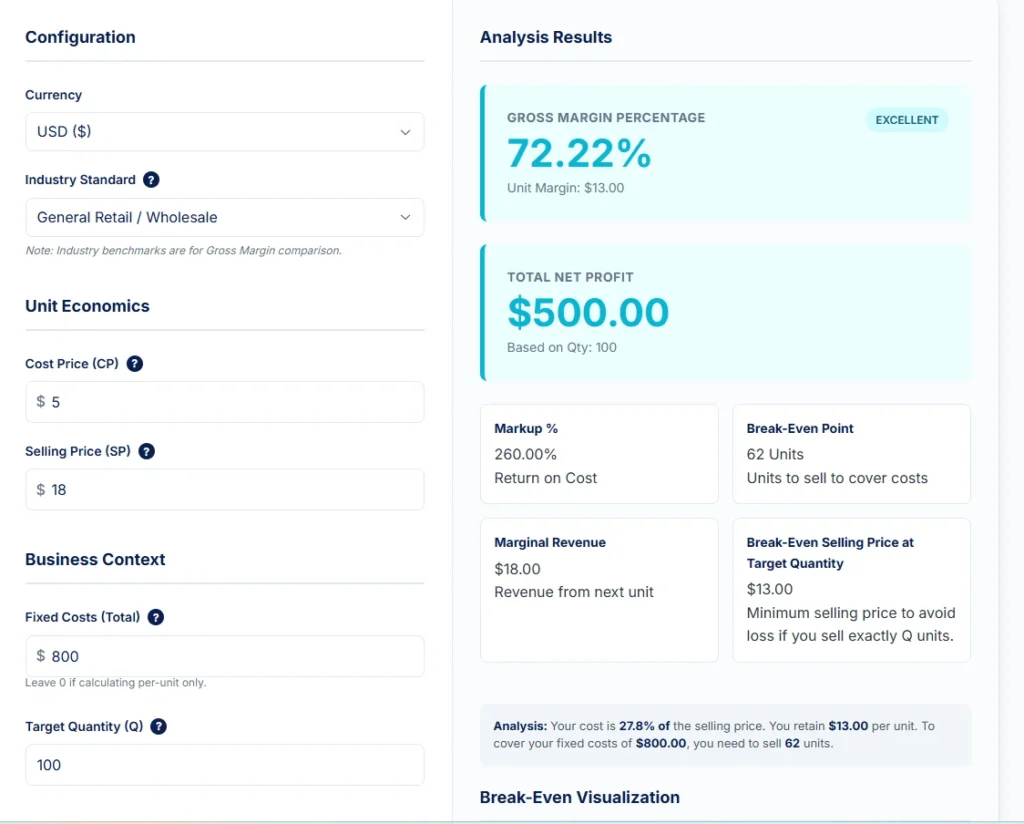
Scenario: You run a store selling custom phone cases. You buy them from a supplier for $5.00 and sell them for $18.00. You spend $800 a month on Facebook Ads (Fixed Cost) and expect to sell 100 units this month.
- Step 1: Select “General Retail / Wholesale” from the Industry Standard dropdown (Phone cases typically fall under general accessories).
- Step 2: Enter $5.00 into Cost Price (CP).
- Step 3: Enter $18.00 into Selling Price (SP).
- Step 4: Enter $800 into Fixed Costs.
- Step 5: Enter 100 into Target Quantity.
What the Calculator Reveals: The tool instantly shows you have an Excellent Margin (72.22%). However, look closely at the Break-Even Point. You need to sell 62 units just to pay for your ads. Since your target is 100 units, you are safe—but if sales drop below 62, you will lose money.
Example 2: The Software (SaaS) Business
Scenario: You built a small productivity app. It costs you almost nothing to add a new user (maybe $0.50 for server fees), but you have high fixed costs because you pay a developer $3,000 a month. You charge $15.00 per month for the subscription.
- Step 1: Select “SaaS / Software” from the Industry Standard dropdown.
- Step 2: Enter $0.50 into Cost Price (CP).
- Step 3: Enter $15.00 into Selling Price (SP).
- Step 4: Enter $3,000 into Fixed Costs.
- Step 5: Enter 300 into Target Quantity.
What the Calculator Reveals: Your Gross Margin is Excellent (96.67%) because digital products have low unit costs. However, the calculator shows your Total Net Profit is only $1,350. Why? Because your high fixed costs eat up the revenue. The Break Even visualization will show you exactly how many users (207) you need just to survive.
Example 3: The Bulk Discount (Marginal Revenue Analysis)
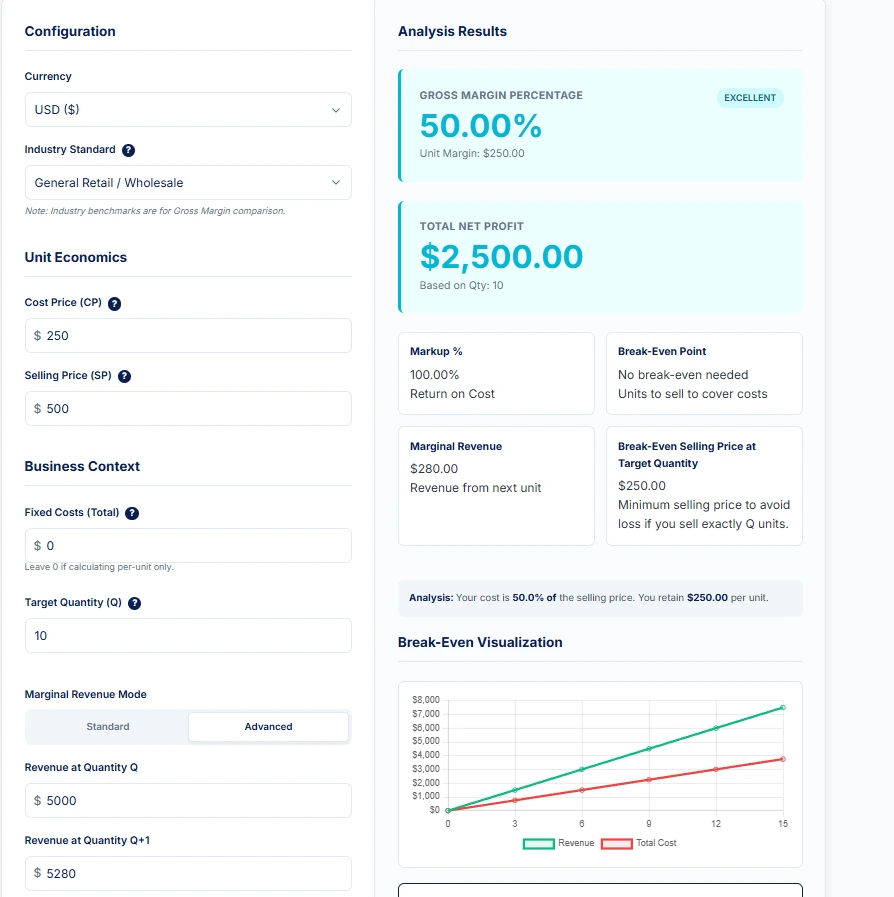
Scenario: You sell handmade furniture for $500 a piece. A hotel wants to buy 11 chairs, but they negotiate a bulk discount.
- Usually, 10 chairs @ $500 = $5,000 Revenue.
- For 11 chairs, you lower the price to $480 each = $5,280 Total Revenue.
Is it worth selling that 11th chair?
- Step 1: Select “General Retail / Wholesale” from the Industry Standard dropdown.
- Step 2: Enter $250.00 into “Cost Price” (just for reference).
- Step 3: Enter $500.00 into “Selling Price” and 10 into “Target Quantity”.
- Step 4: Scroll down and toggle the calculator to “Advanced” mode.
- Step 5: In “Revenue at Quantity Q”, enter 5000.
- Step 6: In “Revenue at Quantity Q+1”, enter 5280.
What the Calculator Reveals: The Marginal Revenue card displays $280.00. Even though you sold the 11th chair for $480, the actual marginal revenue gained was only $280. Why? Because the $20 discount you gave on the first 10 chairs ($200 total) ate into the revenue of the new chair. If your cost to make the chair is more than $280, you effectively lost money on this deal.
Who Should Use This Calculator?
- E-commerce Merchants: Quickly verify if your dropshipping margins can support ad spend.
- Product Managers: Decide if a new feature’s cost is worth the price increase.
- Investors: Perform “sanity checks” on a pitch deck’s unit economics.
- Students: Learn how to calculate margin and marginal revenue for accounting or economics homework.
Related Calculators
- COGS Calculator — Break down your product costs in detail.
- Inventory Turnover Ratio — Measure how efficiently you manage stock.
Product Margin Percentage — Deep dive into SKU-level analysis.
Summary & Key Takeaways
- Margin is the percentage of the selling price that you keep as profit contribution.
- Gross Margin applies to the overall business (Revenue – COGS).
- Marginal Revenue helps you decide if selling “one more unit” is worth the effort.
- Break Even Analysis tells you exactly how many units you must sell to cover fixed costs.
Frequently Asked Questions
Disclaimer
This content and the accompanying calculator are for informational and educational purposes only. They do not constitute professional financial or legal advice. Always consult with a certified accountant or financial advisor before making business decisions.